How to Discard Local Changes in Git
To throw away your edits to a file, run git restore file-name. To discard all uncommitted changes to tracked files, run git reset --hard. New files Git isn’t tracking yet are separate: remove them with git clean. None of these can be undone, so check what you’re about to lose first.
Quick answer
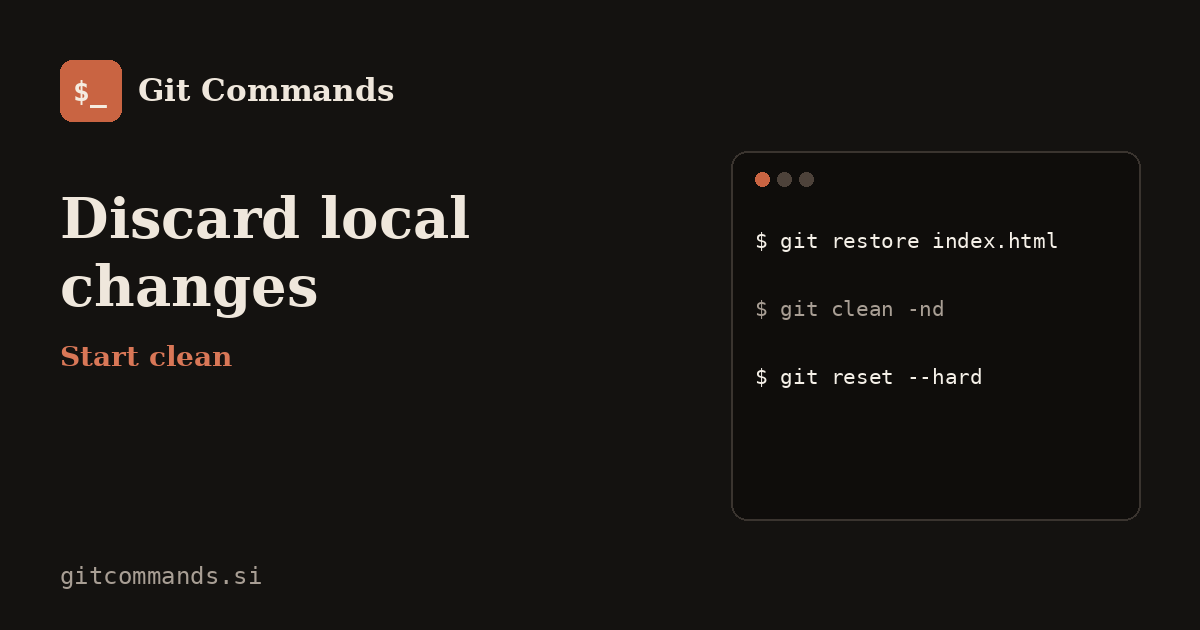
One file: git restore index.html. Everything tracked: git reset --hard. New untracked files too: git clean -fd (preview with git clean -nd).
How we tested: every command on this page was run in a real Git repository (Git 2.43) on 18 November 2026, and the output shown is copied from the terminal. Your commit hashes will differ.
First, see what kind of changes you have
“Local changes” covers three different things, and each needs a different command. git status --short shows which you’ve got:
$ git status --short
M  app.js
 M index.html
?? build/
?? scratch.txt| Code | Meaning | Discard with |
|---|---|---|
M (space, then M) |
Edited, not staged | git restore <file> |
M (M, then space) |
Edited and staged | git restore --staged --worktree <file> |
?? |
New file Git doesn’t track | git clean |
Discard changes to one file
$ git restore index.html
$ git status --short
M  app.js
?? build/
?? scratch.txt
index.html is back to its last committed version. git restore arrived in Git 2.23; on older guides you’ll see git checkout -- index.html, which does the same thing.
A file that’s also staged needs both flags, or Git only resets one of the two copies:
$ git restore --staged --worktree app.js
$ git status --short
?? build/
?? scratch.txt
To keep your edits but just unstage them, use git restore --staged app.js alone.
Remove new, untracked files
git restore and git reset leave untracked files alone, which is why people run reset --hard and wonder why stray files are still there. That’s git clean‘s job. Always do a dry run first; -n only lists what would go:
$ git clean -nd
Would remove build/
Would remove scratch.txt
$ git clean -fd
Removing build/
Removing scratch.txt
$ git status --short-f is required (Git won’t clean without it), and -d includes folders. Files listed in .gitignore, like node_modules or .env, are skipped unless you add -x. Be very careful with -x: it deletes your local .env along with the build junk.
Discard everything and match the last commit
$ git reset --hard
HEAD is now at b8e7a00 Add homepage
$ git status --short
?? scratch.txt
Every tracked file is back to the last commit, staged or not. scratch.txt survived because it’s untracked; run git clean -fd afterwards if you want a completely clean folder.
To match the remote instead, for example after a messy local experiment, run git fetch origin then git reset --hard origin/main. That also drops any local commits you haven’t pushed.
The safer option: stash instead of delete
If there’s any chance you’ll want the changes later, stash them. Your working folder becomes clean, but the work is saved:
$ git stash push -m 'maybe later'
Saved working directory and index state On main: maybe later
$ git status --short
$ git stash list
stash@{0}: On main: maybe later
Bring it back with git stash pop, or delete it for good with git stash drop once you’re sure. Add -u to stash untracked files as well. More in our git stash guide.
Related guides
- git stash: save work without committing
- git reset: soft vs mixed vs hard
- How to Undo the Last Commit in Git (and Keep Your Changes)
- Common Git mistakes and how to fix them
FAQ
How do I discard all local changes in Git?
Run git reset --hard to reset tracked files, then git clean -fd to remove untracked files and folders.
How do I discard changes to a single file?
Run git restore path/to/file. If the file is also staged, use git restore --staged --worktree path/to/file.
Why does git reset –hard not delete new files?
Reset only affects files Git tracks. New untracked files are left alone; remove them with git clean -fd.
Can I recover changes after git reset –hard?
Committed work, yes, through git reflog. Uncommitted edits, no, unless your editor kept a local history of the file.