How to Rename a Git Branch (Local and Remote)
To rename the branch you’re on, run git branch -m new-name. That changes the name on your machine only. If the branch is already on GitHub or GitLab, push the new name and delete the old one, because Git has no command that renames a remote branch directly.
Quick answer
git branch -m new-name
git push -u origin new-name
git push origin --delete old-name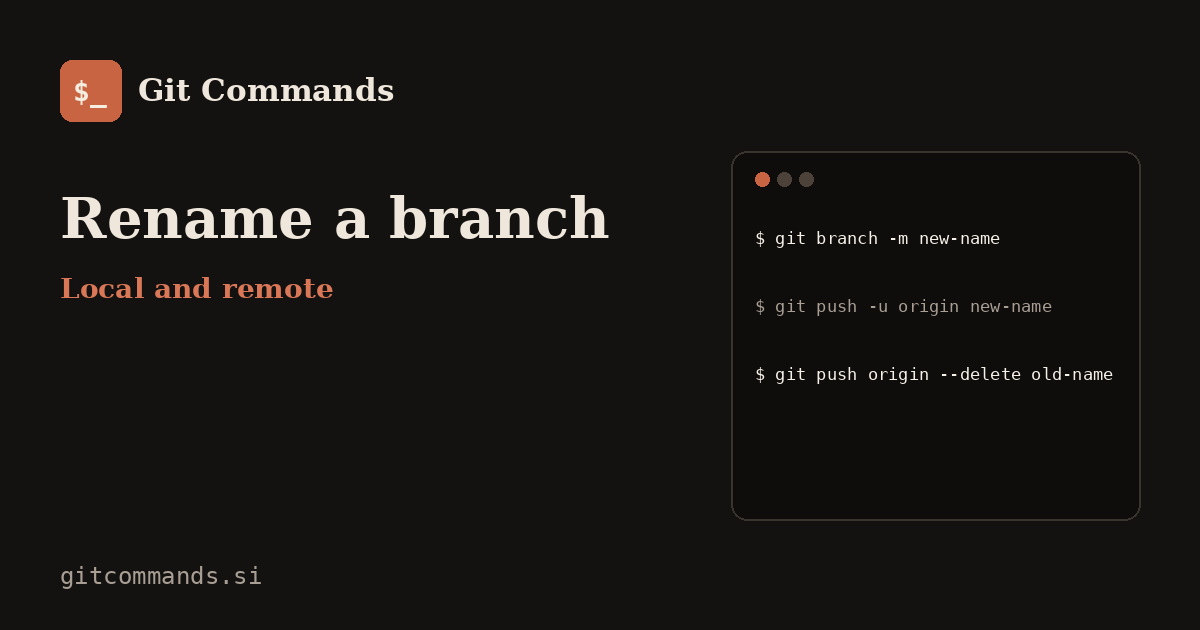
How we tested: every command on this page was run in a real Git repository (Git 2.43) on 18 November 2026, and the output shown is copied from the terminal. Your commit hashes will differ.
Rename a local branch
We made a typo when creating feature/loginn. While on that branch:
$ git branch -m feature/login
$ git branch
* feature/login
  main
To rename a branch you’re not on, give both names, old first:
$ git branch -m old-name new-name
$ git branch
* main
  new-name
-m is short for “move”. If a branch with the new name already exists, Git stops you. -M forces the rename and overwrites that other branch, so check git branch first.
If you only care about your own machine, you’re done. If the branch was pushed, read on, because right now your local branch still tracks the old remote name:
$ git status -sb
## feature/login...origin/feature/loginn
Rename the branch on the remote
Push the branch under its new name, then delete the old one:
$ git push -u origin feature/login
branch 'feature/login' set up to track 'origin/feature/login'.
To /home/sam/remote/shop-site.git
 * [new branch]      feature/login -> feature/login
$ git push origin --delete feature/loginn
To /home/sam/remote/shop-site.git
 - [deleted]         feature/loginn
$ git branch -a
* feature/login
  main
  remotes/origin/feature/login
  remotes/origin/main
The -u flag matters. It points your local branch at origin/feature/login, so plain git push and git pull keep working. Skip it and Git keeps tracking the old, now-deleted branch.
Renaming on GitHub instead
On GitHub you can also rename from the Branches page (pencil icon). Doing it there has two advantages over the command line: links containing the old branch name redirect to the new one, and open pull requests that target the branch are moved to the new name automatically. Renaming the default branch this way requires admin rights on the repository. Everyone’s local clone still has the old name, though, which brings us to the next part.
What teammates need to run
Nobody else’s clone updates by itself. Each person who had the old branch checked out runs:
$ git fetch --prune
From /home/sam/remote/shop-site
 - [deleted]         (none)        -> origin/feature/loginn
 * [new branch]      feature/login -> origin/feature/login
$ git branch -m feature/loginn feature/login
$ git branch -u origin/feature/login
branch 'feature/login' set up to track 'origin/feature/login'.
$ git status -sb
## feature/login...origin/feature/login
git fetch --prune removes the stale origin/feature/loginn and fetches the new name. The rename and -u line up their local branch with it. This is the step most guides skip, and it’s why people end up with a branch tracking something that no longer exists (“upstream is gone” in git status).
Renaming master to main
The default branch is a special case because the remote’s HEAD, branch protection rules and CI settings point at it. The safe order:
- Locally:
git branch -m master mainandgit push -u origin main. - On GitHub/GitLab: change the default branch to
mainin the repository settings, and move any branch protection rules. - Only then delete the old one:
git push origin --delete master. - Update anything that names the branch: CI workflow triggers, deploy scripts, badges in the README.
To make main the default for new repos on your machine, run git config --global init.defaultBranch main.
Related guides
- How to Delete a Git Branch, Locally and on the Remote
- All Git commands with examples
- git fetch vs git pull
- Common Git mistakes and how to fix them
FAQ
How do I rename a local Git branch?
Switch to it and run git branch -m new-name, or from any branch run git branch -m old-name new-name.
Can you rename a remote branch directly?
Not with a single Git command. Push the branch under the new name with git push -u origin new-name, then delete the old one with git push origin --delete old-name. Hosting sites like GitHub also let you rename from their web interface.
Does renaming a branch lose commits?
No. A branch name is just a label pointing at a commit. Renaming moves the label; the commits and history stay exactly the same.
Why does git status say “upstream is gone” after a rename?
Your branch still tracks the old remote name, which was deleted. Fix it with git branch -u origin/new-name.